 RemoveBackgroundMusic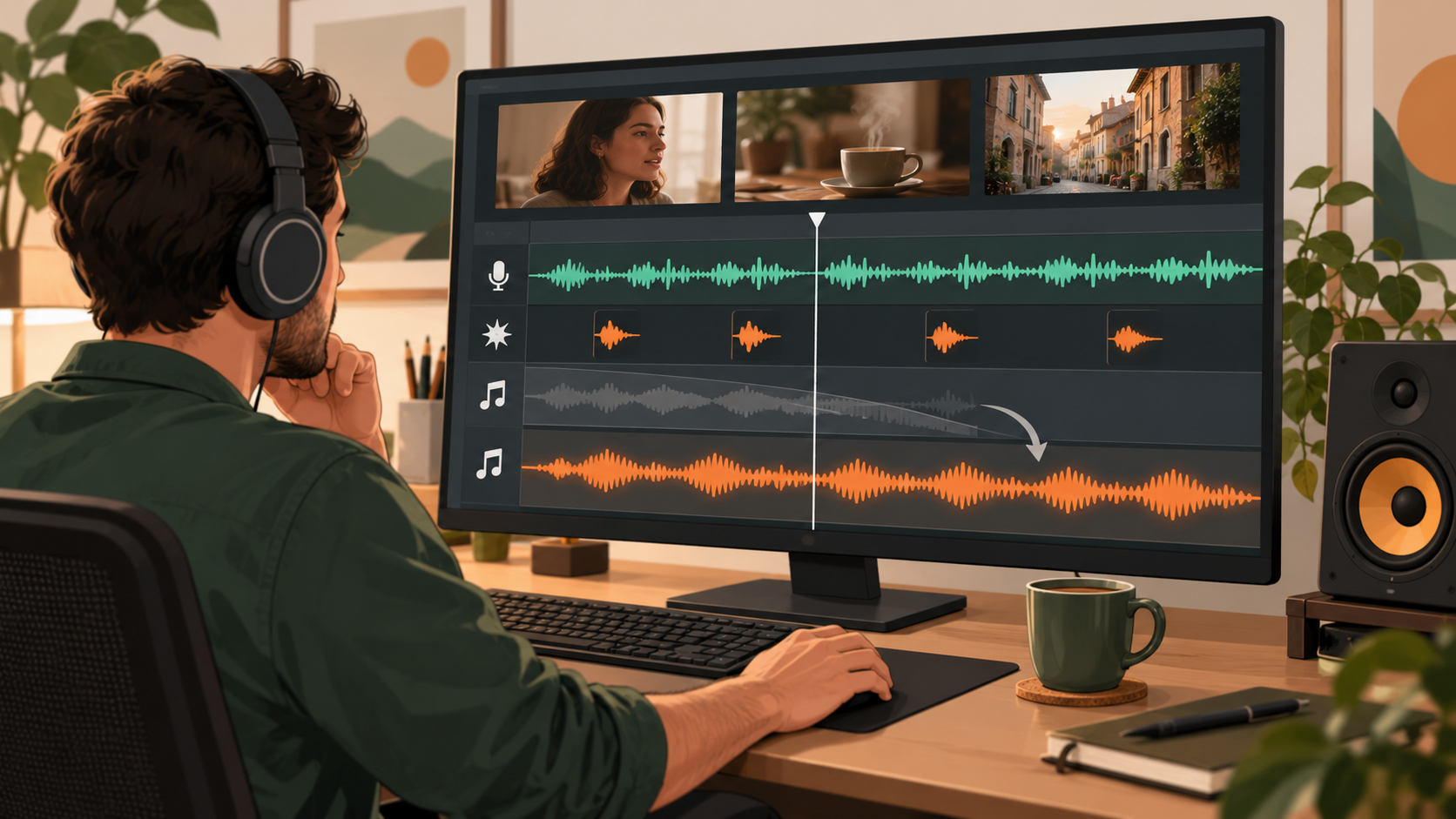
To replace background music while keeping dialogue, first look for the original editing project or separate audio stems. If you only have a finished video, preview music separation on a difficult section and decide whether the remaining voice and scene sounds are usable. Then mute the original mixed soundtrack in a video editor, align the processed audio with the picture, and add replacement music beneath the dialogue. Adjust the new bed around speech rather than simply turning everything up. Separation cannot guarantee pristine dialogue or intact effects from an overlapping mix, and removing an old track does not grant rights to publish the footage or new music.
Start with the project or production stems
If you own the editing project, disable the music track and export the dialogue and effects that you actually need. If you are working for a client, ask for a music-free master or separate dialogue, music, and effects files. Specify whether ambience, transitions, applause, and other scene sounds must remain.
A stem is not necessarily a single isolated source. A dialogue stem may include production room sound, and an effects stem may include intentional tonal design. Listen before assuming that the labels describe perfectly separated material.
Check alternate audio tracks too. A video container may include a different language or mix, but it may also hold only one flattened soundtrack. If all sounds are embedded in the same audio stream, there is no guaranteed setting that retrieves their original production tracks.
Keep the untouched file and any source assets. Work only with media you are authorized to edit. A technical ability to remove music does not establish permission to reuse the dialogue, actors' performances, video, or replacement track.
Decide what “keep the dialogue” means for this scene
For a spoken tutorial, understandable voice may be enough. For a dramatic scene or gameplay clip, removing the sound of a door, a footstep, or an alert can change the meaning. Define the desired output before selecting a separation workflow.
| Scene requirement | Appropriate starting point | What to inspect |
|---|---|---|
| Speech for a new voiceover or captions | Prioritize spoken voice | Quiet consonants, breaths, and sentence endings |
| Dialogue with location atmosphere | Retain useful ambience where possible | Room continuity and outdoor sound |
| Dialogue with story-critical effects | Prioritize voice plus scene effects | Impacts, alerts, movement, and transitions |
| Music video or singing performance | Reassess whether separation fits the goal | Sung voice and score can be inseparable editorially |
| A quieter original score rather than a new one | Consider reduction instead of replacement | Natural voice and remaining music level |
Use the keep-voice workflow when speech is the essential output. Use the keep voice and sound effects workflow when scene events must survive. These are priorities for processing and review, not guarantees that every finished mix can be reconstructed.
Research such as The Cocktail Fork Problem treats dialogue, music, and effects as distinct soundtrack components. That distinction is useful here, but a research task or dataset is not proof of this product's performance on your particular clip.
Step 1: preview the difficult part of the old mix
Select a section that contains the loudest music beneath real dialogue, a soft sentence ending, and an important effect when possible. A silent introduction or an easy passage may hide the exact failure that matters later.
If the music changes style between scenes, test those scenes separately. A restrained piano bed, dense orchestral passage, and song with vocals can present different overlaps even inside the same video. Do not infer the entire result from one favorable sample.
The preview selection guide explains how to make a short test revealing. The current product provides a short preview workflow; use it to judge the hard material before processing a long clip. Do not describe the preview as an independently verified benchmark.
Listen to the residual voice and effects without replacement music. Write down whether every necessary word and event remains intelligible. If you cannot understand a critical phrase in this exposed version, a new score will not repair the missing detail.
Step 2: choose removal, reduction, or a different source
Removal is useful when the old music genuinely needs to disappear and the retained sounds remain acceptable. Reduction may be more useful when strong separation damages the dialogue but a lower original bed is tolerable. If neither result works, search for better assets instead of stacking more processing.
Expect difficult conditions to include singing, dense sound effects, heavily overlapping mixed audio, lossy source material, and music occupying the same time and frequency regions as speech. A separator estimates components; it does not know your original timeline or the editorial importance of every sound.
Compare the result with the original at similar speech loudness. Check for metallic vowels, smeared consonants, fluttering ambience, missing impacts, and fragments of the old melody. These are practical listening observations, not a universal pass/fail number.
Read why music removal leaves voice artifacts if the voice changes noticeably. A less aggressive version may be the better listening experience, even when more old music remains. For a mandatory completely music-free delivery, that compromise may still be unacceptable.
Step 3: align the retained soundtrack in an editor
Import the picture and processed audio into a video editor. Keep the original soundtrack available as a reference, but mute it for the replacement mix. Leaving it enabled can reintroduce the old score and make you misjudge the separation result.
Check synchronization with visible speech or a distinct scene event. Verify the beginning, middle, and end of the clip. Do not trim leading silence independently unless you preserve the offset relative to the picture. Also check any scene cut where a preview or processed segment was inserted.
Two slightly offset copies of dialogue can sound hollow. If the voice becomes strange only after importing it, check duplicated tracks and alignment before blaming the separator. Monitor the editor with only the retained audio enabled, then add the new music after the timing is stable.
Where essential effects were weakened, use authorized original effects or production assets if available. Do not invent an event sound in a documentary or evidentiary context without considering how that changes the representation. Some edits need disclosure or an unaltered reference.
Step 4: add music that leaves space for speech
Choose a replacement track you have permission to use in the intended distribution. Confirm the license covers the use rather than assuming a track is safe because it is downloadable. This guide does not provide a copyright clearance or promise that removing the previous score avoids claims.
Start the music quietly beneath the dialogue. Check whether its rhythm, instruments, or singing competes with the speaker. A sparse arrangement may work better than lowering an extremely busy track. Listen during quiet speech as well as emphatic lines.
Shape the music around the scene. Fade it in and out where appropriate, reduce it during important words, and allow deliberate increases during pauses only when the story supports them. A single fixed volume may be unsuitable if the speaker's delivery varies substantially.
Adobe's official automatic ducking documentation describes a way to lower music in response to dialogue and edit the generated adjustments. Treat automatic ducking as a starting point for listening, not a guarantee that every pause or breath will be handled naturally.
Step 5: review transitions, loudness, and export
Play the new soundtrack from one scene into the next. Listen for abrupt changes in room tone, awkward music fades, and exposed pieces of the old melody. A replacement that sounds convincing beneath continuous speech may fail during a long pause.
Do not use extra music volume to hide damaged dialogue. If the scene is only acceptable when the new score masks artifacts, reconsider the source or separation choice. A viewer needs to understand the words on a small speaker, not only through headphones in a quiet edit suite.
Check levels on the final mix and follow the destination's current delivery requirements. There is no universal loudness target for every publishing context. Adobe's loudness matching documentation provides official context for measured loudness and peak management. Those measurements complement listening; they do not evaluate whether speech was damaged during separation.
Export a review copy and listen to that actual file. Confirm that the correct audio track was exported, that both channels behave as intended, and that picture synchronization survives the export. Keep the original and a version without replacement music so the edit can be revised later.
A practical acceptance checklist
This is a proposed review procedure, not a claim of a product test or a published quality score.
- Every necessary word remains understandable in the retained soundtrack alone.
- Story-critical sound effects survive or have an authorized replacement.
- The old score is acceptable during pauses, not only masked by the new track.
- Dialogue is synchronized at the beginning, middle, and end.
- New music supports speech without abrupt ducking or distracting transitions.
- The final exported file sounds acceptable on headphones and a phone speaker.
- Permissions and remaining limitations are documented for the intended use.
Failing one item does not automatically mean a stronger separator is needed. Missing effects may require stems. Alignment needs timeline correction. Licensing needs permission. Music that fights the speaker may require a different arrangement. Diagnose the stage that failed before repeating the entire process.
Frequently asked questions
Can I simply replace the whole audio track?
Only if you are willing to lose everything in that track, or if dialogue and effects are already available separately. Replacing a flattened soundtrack with a song removes the original dialogue too. Recover or obtain the sounds you need before muting the mixed track.
Can I keep dialogue and sound effects together?
That is a legitimate target, and the current product offers a workflow oriented to retaining voice and effects. Results still depend on overlap and source quality. Tonal effects, dense action, singing, and complex mixes need especially careful preview review.
Is adding new music enough to hide the original score?
It may mask some residue, but it does not remove it. Listen during pauses and fades, where both tracks may become obvious. Masking also does not resolve rights questions about the original material.
Does this require re-encoding the picture?
That depends on your export workflow. Audio replacement and video encoding are separate decisions. The MP4 audio replacement guide covers workflows that preserve the encoded picture stream. Do not assume every editor export does so automatically.
What if the clip includes a singer?
Decide whether the singing is part of the voice you need or part of the score you want removed. It can overlap spoken dialogue and complicate the target. Preview the exact overlap; do not treat an instrumental/vocal split as proof that dialogue and effects will remain intact.
Test the old soundtrack before choosing the new one
Start with the music removal tool, select the retained sounds your edit needs, and preview a difficult section. Move an acceptable result into your editor for replacement music, ducking, alignment, and export checks. If the retained voice or essential effects are unusable, seek original stems rather than building a new soundtrack on damaged material.
Prepared by the RemoveBackgroundMusic Editorial Team. Guidance reviewed October 1, 2026. No fabricated sample, perfect-separation guarantee, or hands-on benchmark is claimed.