 RemoveBackgroundMusic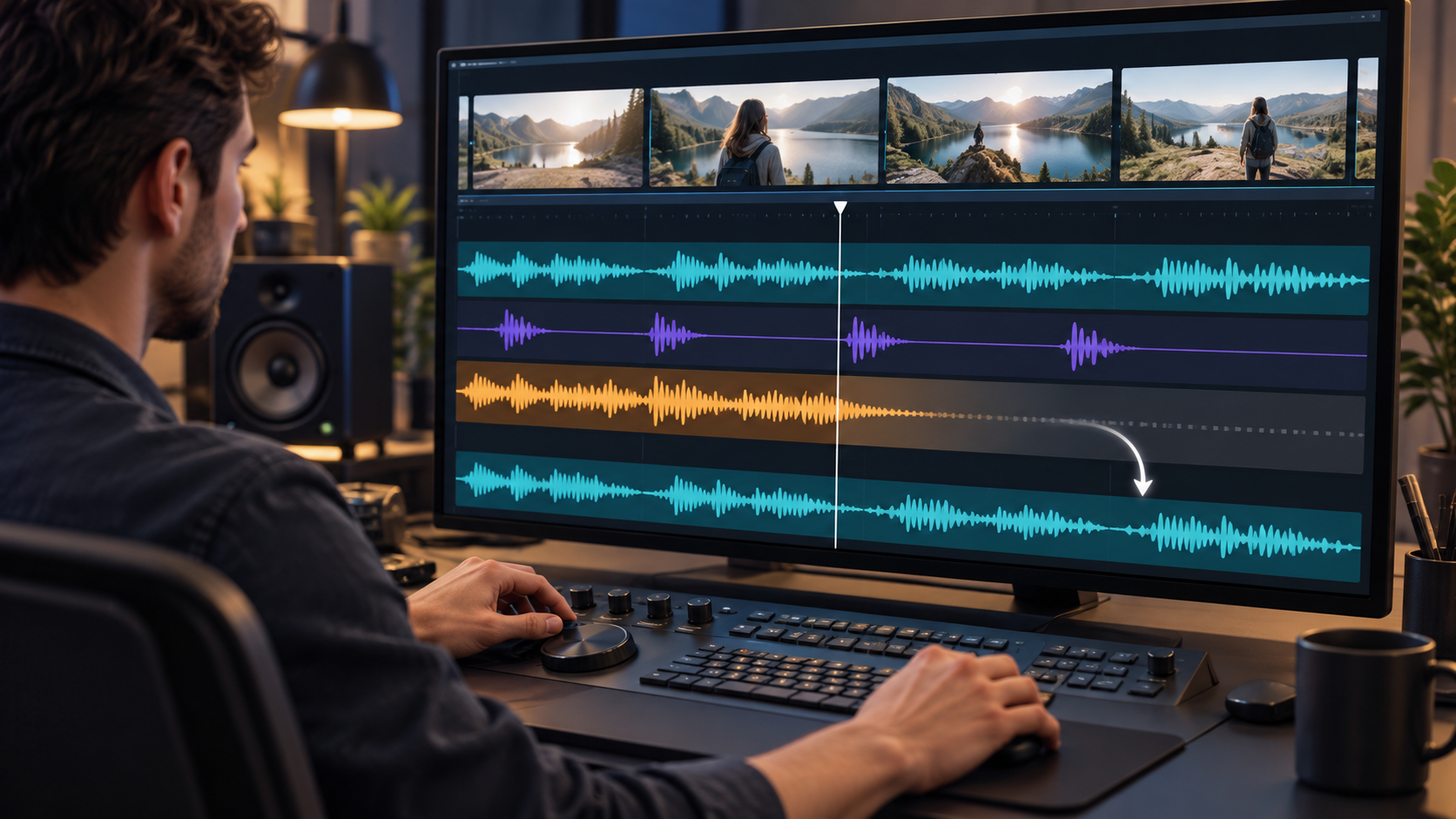
You can remove background music from an MP4 without re-encoding its picture by processing only the audio, then placing the processed audio beside the original video stream in a new MP4 container. This preserves the encoded video frames, but it does not make music removal lossless: dialogue, music, ambience, and effects are already mixed in most finished videos, so separation must estimate what belongs in each layer.
Quick answer
First look for an original project or music-free stem. If none exists, inspect the MP4 tracks, test the hardest 30 seconds, choose whether voice or voice plus effects must survive, compare at matched loudness, export a time-aligned replacement soundtrack, and remux it with the original video stream. “No video re-encoding” protects picture quality; it does not guarantee perfect audio separation or a byte-identical output file.
The job has two separate parts
First, change the soundtrack: remove or reduce music from the MP4 audio while protecting the sounds the next edit needs. Second, package the result: combine replacement audio with the original encoded video stream instead of decoding and encoding the picture again. The packaging step can preserve video packets, while the audio step remains an estimation problem when the source is a finished mix.
If you still have the editing timeline, mute the licensed music track and export again. If you have separate dialogue, music, and effects files, rebuild the mix from those. Source separation is the fallback for a flattened MP4, not a substitute for production assets. No container option can recover a clean original stem that was never included in the file.
Why an MP4 is not one indivisible file
An MP4 is a container. It can hold an encoded video stream, one or more audio streams, captions, timing information, and metadata. Replacing an audio stream does not inherently require changing the video stream. The picture can be copied into a new container while replacement audio is encoded into a format supported by the destination player.
This distinction matters because export and re-encode are often treated as synonyms. A media application can create a new MP4 while copying original video packets unchanged. FFmpeg calls this streamcopy and documents that it avoids decoding and encoding the selected stream. Audio is different: if it was separated, mixed, faded, or changed, new samples have been produced and the replacement may be encoded. “No video re-encoding” therefore does not mean every byte in the finished file is unchanged.
Inspect the MP4 before processing
Do not assume a video has only one mixed audio track. Inspect it in a media-information tool or editor. Look for multiple language tracks, dialogue-only or commentary tracks, descriptive audio, captions, channel layout, audio codec, sample rate, duration, variable frame rate, and unusual timing metadata. If a clean alternate track exists, select it instead of estimating new stems.
If the file came from a client or production partner, ask for the project, stems, an international version, an M&E mix, or a music-free master. A short asset search can outperform hours of repairing an estimate. Keep an untouched copy, work only on media you are authorised to process, and record where the source came from. Removing music does not grant permission to republish footage, dialogue, performances, or effects.
Define the sound you need to keep
“Remove the music” is incomplete until you define the desired output. For captions, translation, or replacement narration, intelligibility and stable speech tone may matter most. For documentary, interview, gameplay, or a dramatic scene, room tone, movement, applause, impacts, transitions, and environmental continuity may also be essential.
Use the keep-voice workflow when spoken content is the essential output. Use the keep-voice-and-sound-effects workflow when footsteps, ambience, designed effects, or location sound matter. Neither choice guarantees perfect recovery from every finished mix. Percussive effects can follow the music stem, tonal ambience can resemble instruments, and singing can be ambiguous between speech and music.
- Speech-only result: prioritise words and stable voice tone.
- Dialogue with location sound: protect room tone and environmental continuity.
- Dialogue with designed effects: test impacts, transitions, and tonal cues.
- Archival or broadcast master: prefer original stems and documented mix decisions.
Step 1: select a revealing test section
Test the hardest thirty seconds before processing a long video. A quiet title card can hide the problems that appear later. Include speech under the loudest music, a quiet or breathy phrase, an instrument near the voice range, a necessary effect, a music fade or edit point, stereo movement, and singing if the soundtrack contains vocals.
The preview guide explains how to choose a segment that exposes overlap rather than flattering the tool. Label source and preview files clearly so a processed result is never mistaken for the master. Test the exact material viewers must understand, including names, numbers, and sentence endings—not merely a convenient silence.
Step 2: remove or reduce the music from the audio
Use the cleanest available soundtrack. Avoid a social-media download, messaging-app copy, screen recording, or previously processed export when the camera or editor original exists. Repeated lossy encoding can smear transients and high-frequency detail, which makes separation harder.
For supported MP4 input, the current RemoveBackgroundMusic.com workflow extracts audio for processing while keeping the original video available for the final pairing. This describes the current product workflow, not a universal promise about every editor or service. Test the difficult section and choose an output only after listening.
Compare the original and result at similar perceived speech loudness. Listen for missing consonants, watery or phasey voice texture, pumping between phrases, music in pauses, lost ambience or effects, unstable stereo positioning, and changes in breath or room-tone continuity. If aggressive removal harms important sound, reduce the music instead of forcing silence. A small residual bed can be less distracting than broken speech.
Step 3: export a replacement soundtrack
Export a full-length audio file with the same start point and intended duration as the source. Do not trim leading silence casually; it may carry alignment. Preserve the required channel layout unless you deliberately need mono dialogue. Check the beginning, middle, and end against picture because a sample-rate or duration mismatch can become visible lip-sync drift over a long recording.
If you edit the separated result, keep processing gentle. Heavy compression can raise musical residue between words. A hard gate can remove breath and sentence endings. Treble boost cannot restore speech detail that separation removed. Return to a less aggressive source when wanted sound is missing, and avoid unnecessary rounds of audio encoding.
Step 4: remux original video with processed audio
Remuxing writes selected encoded streams into a container without decoding and re-encoding streams that can be copied. A compatible editor or transcoder can select the original MP4 video stream, processed replacement audio, required captions or metadata, and an MP4 output container. The important setting is to copy the video stream while encoding or copying audio as appropriate.
Confirm the application actually reports video stream copy or passthrough; some simple editors silently re-encode picture on export. Container and codec compatibility still matters. The WebCodecs specification distinguishes encoded audio/video chunks from their container and describes timing data used by media applications. You do not need to implement that API, but the model explains why preserving encoded picture data and replacing timed audio are separate tasks.
The current RemoveBackgroundMusic.com video workflow pairs processed audio with the original locally available video for the result. Verify the downloaded file rather than assuming that successful processing guarantees a correct final container.
Step 5: run a picture, sound, and sync check
Watch the finished MP4 from start to end when the deliverable matters. Compare a still frame or high-motion passage with the source, confirm lip sync at the beginning, midpoint, and end, and verify the replacement starts on the correct frame and does not end early. Listen on headphones, ordinary speakers, and a phone.
Confirm that dialogue remains understandable without captions, required effects and ambience survived, fades and pauses do not pump, and the target browser or publishing platform plays the file. Check that captions and alternate audio tracks were not accidentally dropped. Keep the original, processed audio, settings, and final MP4 as separate files so the decision remains reversible.
Why keeping voice and effects is difficult
In an editing timeline, sources may begin as separate tracks. In a finished MP4, they are usually summed. Speech, singing, music, ambience, and effects can occupy the same time, frequency range, and stereo position. A separation model estimates likely components; it does not uncover labels stored inside the waveform.
Research calls the speech-music-effects case the cocktail fork problem. The DnR soundtrack-separation paper treats dialogue, music, and effects as three real-world stems and evaluates the challenge under mixed conditions. This is why cymbals may take hiss-like ambience with them, a piano note may damage a vowel, or a percussive effect may disappear with the beat.
Singing makes the boundary more ambiguous because it contains words like speech but pitch and harmonics like music. Dense mixes, crowd noise, reverberation, and heavily mastered sources reduce the clean evidence available for estimation. Remuxing changes packaging; it cannot repair these separation artifacts.
Common mistakes to avoid
Do not re-encode the whole video when only audio changed; choose stream copy or passthrough when compatible. Do not promise perfect preservation of voice or effects; describe what the real preview demonstrated. Do not convert a low-quality source to WAV and assume lost detail returned. Do not process an already separated result repeatedly unless a full comparison proves the second pass is better.
Inspect alternate tracks before estimating stems. Keep timing and leading silence intact. Most importantly, do not treat music removal as a rights solution. Changing the soundtrack does not determine copyright ownership or grant reuse permission for the source footage, performances, dialogue, effects, or final distribution.
When to choose a different workflow
Choose another approach when essential words disappear, a speaker’s tone changes between phrases, important effects vanish, or the result is more distracting than the original. Better options include retrieving stems, asking for a music-free master, rerecording narration, rebuilding effects, reducing instead of removing the bed, shortening the clip, or using alternate footage.
For broadcast, legal, archival, or high-value commercial delivery, involve an experienced dialogue editor and document the source, transformations, listening checks, and approvals. The goal is not to maximise an amount-removed metric. It is to produce an authorised, intelligible, technically stable file for its intended use.
Frequently asked questions
Can I remove music from an MP4 and keep original video quality? Yes, when the tool copies the original encoded video stream into a new container instead of encoding it again. Replacement audio may still need encoding, so verify the export reports video copy or passthrough.
Can music be removed while keeping every voice and sound effect? Not reliably for every flattened soundtrack. Music, speech, ambience, and effects overlap. Test an effects-heavy section and choose the output that fits the job.
Why does the voice sound metallic or underwater? Some speech detail was probably estimated as music. Return to the original and try a less aggressive result or partial reduction.
Does stream copy mean the complete output is lossless? No. It can preserve video packets, but processed audio is newly created and may be encoded. Metadata, track order, and container details can also change.
Will remuxing fix separation artifacts? No. Remuxing changes how streams are packaged; it does not restore speech, ambience, or effects removed during separation.
Should I use the original editor project instead? Yes, when it exists. Muting a dedicated music track is cleaner and more controllable than estimating sources from a finished mix.
A practical decision checklist
- Retain the untouched source and confirm you are authorised to process it.
- Inspect all audio tracks before estimating new stems.
- Define whether the result needs speech alone or voice plus effects.
- Preview the hardest thirty seconds at matched loudness.
- Export replacement audio with unchanged start time and intended duration.
- Copy the original video stream when container and codec support allow it.
- Verify picture, dialogue, effects, captions, and sync from beginning to end.
- Keep the source, processed audio, settings, and final MP4 separately.
Bottom line
To remove background music from an MP4 without re-encoding video, process the soundtrack, export a time-aligned replacement, and remux it with the original encoded picture stream. Video stream copy can protect picture quality; it cannot make source separation perfect. Preserve the source, test the hardest overlap, and choose the least destructive useful result.
Sources, related guidance and update notes
Reviewed on September 30, 2026. The primary sources below support the technical context; they do not endorse this product. Product behavior and separation models can change, so use the current preview from your own source as the final decision point.
- FFmpeg documentation: Streamcopy — Official documentation explaining packet-level stream copying without decoding or encoding.
- W3C WebCodecs specification — A standards reference distinguishing encoded media chunks, timing, and container handling.
- The Cocktail Fork Problem: Three-Stem Audio Separation for Real-World Soundtracks — Primary research on separating speech, music, and effects from real-world soundtrack mixtures.
Related guidance
- Start a background-music-removal preview
- Remove music and keep voice
- Keep voice, ambience, and sound effects
- Choose a revealing preview
- Choose Remove or Reduce
- Diagnose separation artifacts
Read the editorial and testing policy for how product examples, limitations and corrections are handled.