 RemoveBackgroundMusic
First, identify the file you actually have
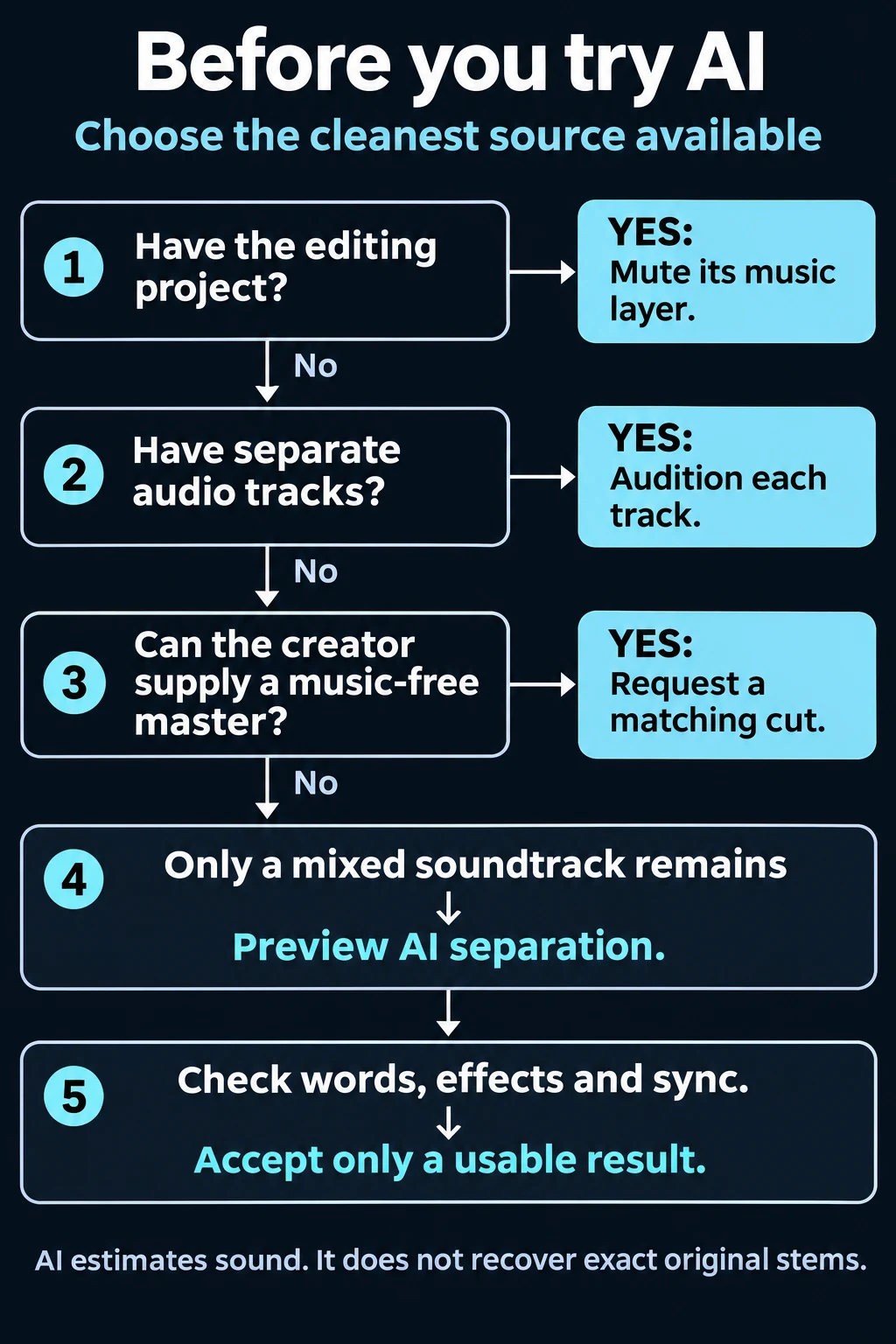
This concept diagram summarizes the source checks below. It is not a software screenshot or a processing result. Each “yes” branch uses the better source; only a mixed soundtrack leads to an AI preview.
A project, an exported video and an audio recording offer different options. Start by keeping an untouched copy and asking where the music entered the edit. If a collaborator added it in an editor, the fastest solution may be their project or a matching music-free export. Asking for that source can save more time than repairing a separated soundtrack.
Swipe sideways or use arrow keys while this table is focused to compare all columns.
| Your source | First action | What this avoids |
|---|---|---|
| Editing project with a separate music layer | Disable that layer and audition the sequence | Unnecessary changes to clean dialogue |
| Several audio tracks in an exported video | Audition each independently in an editor | Separating a mix when a clean alternative already exists |
| One mixed soundtrack | Preview AI separation from the original file | Paying before hearing damage |
| Audio-only recording | Apply the same speech/music listening check | Assuming a video container is required |
| Public viewing link | Obtain an authorized source file first | Confusing access to playback with permission to edit |
A stereo left and right channel pair is not automatically separate speech and music. Muting one side may remove part of the stereo scene while leaving the score. Track names can also be misleading: listen to the actual content rather than assuming “audio 2” means isolated dialogue.
For a finished export with no project, see work without original stems. If voices and scene effects both matter, use the keep sound effects too workflow as your acceptance target.
Step 1: keep the strongest authorized source
Use the camera recording or original editor export when available. A repeatedly compressed social-media copy is a weaker starting point. Keep the source unchanged and create a separate working copy. Note the duration, the frame or scene where important speech begins, and any sound you cannot afford to lose.
Write a short listening brief before processing. For example: “Keep both speakers intelligible, retain the door closing after the last sentence, and preserve enough room sound that the pause does not feel cut out.” This is a proposed review brief, not a report of a tested customer result. It makes your decision specific enough to reject a superficially impressive but unusable preview.
Do not upload confidential or third-party media unless you have permission to process it. In this site's video workflow, the picture remains on your device, but extracted audio is sent to processing services. Local picture handling does not mean the whole task is offline.
Step 2: choose the sound that must remain
Start the remove background music from video workflow with your supported local file. Choose Dialogue & sound effects if room tone, movement or other scene sounds matter. Choose Dialogue only when people speaking are the priority and suppressing other sounds is acceptable. These are preservation goals, not guarantees about every word or effect.
A voice isolator and a scene with its music removed solve different editing tasks. A very clean speaking voice can still be wrong for a scene whose footsteps and background activity disappear. Conversely, keeping all residual sound may retain distractions you do not want in a speech-only clip. Compare voice isolation before choosing a goal simply because its label sounds stronger.
Do not look for a separate “Reduce” button in the current preview workflow. If some old music is acceptable, an editor can compare a blend of original and processed audio later. Such a blend can also retain music you intended to remove, so make that choice deliberately.
Step 3: select the section most likely to fail
Choose quiet words under loud music, not a silent introduction. Include a consonant-heavy phrase, a breath, a second speaker if present, and an essential scene event. If singing overlaps speech, include that overlap rather than assuming the model can distinguish voices by your intended role for them.
The free preview is up to 15 seconds, with the available selection shown by the tool and limited for short files. A convenient 15-second sample is not proof about an entire recording. If your file moves from quiet narration to applause and music, record which region you actually checked and inspect the other region in the full result before using it.
Keep the original and processed versions aligned to the same moment. Otherwise, different words or a different music passage can make an unreliable comparison look convincing. When a segment starts immediately on a loud impact, include enough lead-in and decay to hear whether the event has changed.
Step 4: compare speech, scene sound and pauses separately
First follow the words without watching the waveform. Can you still understand names, numbers and sentence endings? Does either speaker sound metallic or watery? Then listen to the required effect. Finally, listen between phrases for unstable room tone or music returning in pulses.
Compare at a similar perceived voice level. Louder speech can sound clearer even when information is missing, while a quieter processed result can seem worse simply because it is quieter. Lower your playback level before switching if necessary; avoid treating a dramatic loudness change as evidence of better separation.
Use this four-position worksheet on your own file:
- A quiet word beneath the score: check consonants and meaning.
- A voice transition: check the second speaker, breaths and sentence endings.
- A required event: check its onset, tail and surrounding ambience.
- A pause or edit boundary: check pumping, residue and abrupt silence.
These are listening instructions, not measured performance claims. There is no universal pass percentage that proves a soundtrack is safe for your project.
Step 5: decide whether the complete job is worthwhile
Continue only when the preview meets your listening brief. Review the validated file's actual quote before buying. A free preview is a limited listening sample, not a promise of a free full-length export or unlimited processing. Current offers and eligibility are shown in the tool and on Pricing.
After full processing, review the whole result under picture. Check the beginning and end for sync, then inspect scene transitions, both speakers and regions the preview did not cover. Audio downloads and locally assembled video outputs have different packaging requirements; browser and source codec compatibility affect which output is available. Keep your original until the delivered file plays correctly in the destination editor or player.
If you plan to add new music, inspect the separated scene before adding it. A replacement bed may hide residue but cannot reconstruct words or effects removed during separation. Use the replacement workflow only after deciding the underlying scene is usable.
What usually goes wrong, and what to do next
Muffled or watery words: return to the untouched source. If essential syllables are missing, EQ cannot reliably recover the original information. Request cleaner audio, use another take or revise the edit.
Background singing remains: singing and speech overlap acoustically. Check the actual passage in the supported preservation goals. Reject a result that damages the wanted speaker while leaving the singer distracting.
Room tone disappears: a speech-focused output may suppress it intentionally; a scene-focused output can still lose it through overlap. Restore authorized ambience in an editor if appropriate, or use source tracks.
Music survives between words: a quieter bed may be acceptable for some edits, but cannot satisfy a requirement for no recognizable old score. Do not assume more processing will preserve the same voice quality.
An effect disappears: percussion and scene impacts can resemble one another. If that event carries meaning, restore it from source material or stop. A quieter score is not success when the scene loses its essential sound.
When to stop processing
Stop when a changed word alters meaning, a speaker's identity becomes unstable, a required effect disappears, or repair time exceeds the cost of locating the source. A second pass on an already damaged estimate can make the result harder to judge. If an exact professional stem is required, request the original rather than describing an AI output as untouched dialogue.
The published examples are disclosed synthetic test mixes, not customer recordings. They illustrate what to listen for and cannot validate your file. This guide does not report a completed browser upload-to-export acceptance test.
Frequently asked questions
Can I keep two speakers?
You can try a dialogue-preserving goal, but audition both voices, especially quiet interjections and overlapping speech. A good result for one speaker does not prove the other remains intact.
Does this work with MP4?
MP4 is a container, not a guarantee about the soundtrack or codec. Inspect its tracks and let the tool validate compatibility. See the MP4 export guide for picture preservation and output checks.
Can I keep a voice over a song with vocals?
Sometimes the result may be usable, but singing and talking can interfere. Use the actual overlap as the preview and reject changed words or distracting leftover singing.
Can I download the whole video?
Full processing is separate from the limited free preview. Compatible video can be assembled locally with the original picture; output container availability depends on codecs and browser support. Confirm the available output before committing.
Do I need an account to hear the preview?
The public workflow offers a first preview without signup. Paid processing and account recovery have their own requirements. This does not promise an unlimited anonymous allowance.
Sources and editorial evidence
The Cocktail Fork Problem studies separating speech, music and effects in mixed soundtracks. Its research benchmark is not a benchmark of this product. FFprobe documentation supports inspecting streams rather than inferring tracks from a filename. Product labels and limits were checked against current source code on November 17, 2026; this is not a hands-on upload-to-export test or screenshot walkthrough. See the editorial and testing policy.